Searching for an Organization System that Clicks

Stack of Papers by quinn.anyaA pile of papers has slowly taken over my desk. Like a vicious mold, it started with a small bit, and it’s grown larger and larger until it seems like there’s no clear area left.

Hidden in this pile I found expired coupons, a couple of shopping lists, some recipes, a couple of articles pulled from magazines, and a very large number of web pages that I’ve printed out over the last year.

Why? I can’t seem to find the right way to organize things. I print them out and try to lie them in useful places so that I can return to them when I need them. Digging through that pile today, however, showed me that things I thought I would need in August of last year were sitting untouched at the bottom of the various collections of paper.

No system seems to click. Nothing gives me that perfect “this is RIGHT” feeling. So I’ve gone through the lists and tried to find a new way to deal with them, a way that doesn’t result in a lot of dusty piles of paper. Here’s what’s evolved:

Gmail for registration information: I have a reginfo folder in Gmail and every email with a serial number, registration information and the like goes in that folder. I don’t try to organize them any further than that. If I need anything, a search of the folder can find it quickly. This system has actually been working for me for years. Previously, it was a folder in Eudora or one in Pine, but Gmail is nicer because of the search and the easy access from anywhere.

Google Tasks for writing ideas: Right now, most of my writing ideas are in a massive to-do list in Google Tasks. I got this idea from Ryan Cordell’s guest post on Profhacker. Ryan was actually talking about Cultured Code’s Things, but I wanted a cross-platform, free solution. Tasks seemed like a great idea back in January when I dumped everything in there, but it’s just not working. I have more than a page of ideas and no easy way to organize them. There’s not even an easy way to count them. There are no printouts involved, but it’s not working.

Evernote for writing ideas: The elephant icon has been up there in my toolbar staring at me for a while, nagging at me to look at Evernote again. When I glanced at it Thursday, I thought it might be a handy way to store ideas I wanted to come back to. I poked a few things in there, but that was about it. Today, however, as I unearthed printouts that I needed, I realized that Evernote might be quite useful. As I found the corresponding pages online, I added them to the proper folder in Evernote and tossed the paper in the recycling bin. Maybe Evernote can work for the majority of things I was printing out:

Recipes? Recipes are my biggest confusion. There must have been 20 printouts, clippings, or jotted out recipes in the piles I’ve gone through so far. I’ve been trying to figure out what to do with recipes for months now. I tried creating a Wiki for them, but it’s not getting very far. I wish there were plug-in templates for different kind of Wikis, but having to figure out the layout and setup is just more work than I’ve had time to do. Tonight, as I found the recipes in the pile, I added them as private Delicious bookmarks. I’m not really happy with that solution either. I don’t want them out in the public, because everything else in my Delicious account is work-related.

Dropbox? I have a Dropbox account, but there’s nothing useful in it. I’m not sure it’s helpful in this great printout organization effort, but I did diligently follow Lifehacker’s instructions to get an extra 250MB of space yesterday. And hey, if you don’t have a Dropbox account yet, sign up with my link and we’ll both get another 250MB of free space!

So that’s what I’m trying right now. Do you have a good solution? Know some way to keep online resources ready and easy to find without printing them out? Let me know in the comments. Please. I need all the help I can get.

 

[Creative Commons licensed Flickr photo by quinn.anya]

BP’s Unintended Lesson on Visual Rhetoric

Altered BP HIVE Center Photo by BP AmericaIt’s politically correct to be disappointed with BP and their little oil well problem in the Gulf. But how can I be angry when they provide me with such wonderful gifts?

First, BP America digitally enhanced some of their oil spill clean-up photos. The images are great for pointing out the sloppiness of the Photoshop work and, more importantly, discussing the ethical issues related to tampering with the images. Be sure to look at the face-saving explanation BP has posted with the BP Altered Images Flickr set. Any class exploring visual rhetoric should spend time with these photos. So a big thank you to BP for classroom material.

But that’s not all. Next, the folks over at Wired took the faked BP images and challenged readers to create their own digitally altered photos. The results are marvelous. Everything from Godzilla to Rick Astley is out there in the Gulf causing mayhem.

The submission showing pop culture images on the different monitors is probably my favorite:

BP Multiple-Monitor Pop Culture from Wired

How could you NOT like an image that includes Max Headroom, War Games, Star Trek, Poltergeist, and The Matrix?

As part of a visual rhetoric lesson plan, the Wired challenge images open up the topic of satire and parody. Students can discuss how the different images critique the way BP has handled the oil spill—both in its actual clean-up and in the images they have shared with the public.

So politically correct or not, I’m a little thankful to BP America for providing me with the materials for a timely lesson on an important topic.

[Creative Commons licensed Flickr photo by BP America]

Easy Supplemental Reading: 100 Best Magazine Articles

Stack of Magazines by theseanster93No matter what textbook I choose for class, there’s always a class or two where I wish I had a few more readings available. Nothing in the text seems quite right, so I end up searching for something online that will fill the gap.

For those class sessions, I now have a collection of 100 best magazine articles, gathered by Kevin Kelly, cofounder of Wired and author of the forthcoming What Technology Wants (Viking/Penguin, October 2010).

Links are included for most of the articles; however, many go to only abstracts or snippets. To access the full article, you’ll need to pay for the download. Of course, on a college campus, you’re bound to be able to find any of these articles at the library with the citations that are included.

If I were teaching a graduate course, I think I’d ask students to divide up the articles and create short abstracts and keywords for each. I’d definitely ask them to include an indication of whether the article was free, subscription-based, or one-time fee-based. Published as a class collection, the annotated entries would give every student a rich resource for the future.

The list of articles could also help me point undergrad writers to key articles for research projects. For instance, a student writing about online bullying would certainly want to look at Julian Dibbell’s “A Rape in Cyberspace,” and the list gives me both a link to the article and a citation to find a print copy at the library.

My favorite find on Kelly’s list is Tom Junod’s Can you say- Hero?” from the November 1998 Esquire. The creative nonfiction essay weaves several anecdotes about Mr. Rogers into a profile that casts everyone’s favorite childhood neighbor as hero.

Take a look at the list yourself. You’re bound to find something new or forgotten that will be worth a read. What’s your favorite on the list? Be sure to email Kevin Kelly, who is building a Top Ten list.


[Creative Commons licensed Flickr photo by theseanster93]

My Literary Genes

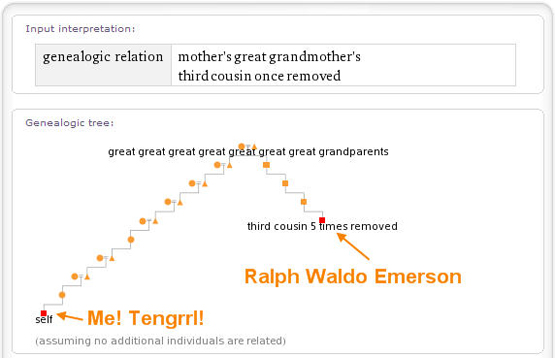
I’ve written before about my literary claim to fame: I’m slightly related to Ralph Waldo Emerson, through my great-great-grandmother Anne Emerson.

While I know that Anne was Ralph’s third cousin once removed, I’m not exactly sure what that makes me. Genealogy isn’t exactly my area of expertise.

That’s why I’m loving the relationship in Wolfram|Alpha. I entered the information I knew, and got a lovely chart that made everything clear:

My genealogical relationship to Ralph Waldo Emerson

Depending upon how I described the relationship, I’m Emerson’s 4th cousin 3 times removed or his 3rd cousin 5 times removed.

Either way, it appears that I share a 1/8192, or 0.012207%, blood relationship. We share a 13th degree of kinship, which apparently means I’m free to marry him or serve on a jury considering his fate. I don’t think either of those situations is likely to arise. But enough of my poetic cousin.

The relationship query in Wolfram|Alpha could be used in the classroom to help clarify family relationship students read about as well. If you’re reading Faulkner, you may well need complete family trees. If you’re just trying to explain third cousins, this may be just what you need.


My Top 3 Tips for Teaching with Twitter

Blue Cartoon Bird by Lisa YarostSo you’re ready to dive in and try Twitter in the classroom. Let me share these tips that can make sure your classroom experience is a smooth and effective.

  1. Create separate logins. Audience and purpose shift from message to message. Set up different Twitter accounts to keep classroom updates separate from updates for family, friends, and others. There are tips to make managing multiple accounts easier. Encourage students to create a separate account for official class work as well. I actually post on four accounts:
  2. Use hashtags. Choose a specific and unique hashtag (# plus a keyword) to group updates from your different classes (e.g., #VTEngl10). See “How To Create Successful Chats on Twitter with Hashtags” for more suggestions. Lists can work too, but you have to set up a list. You can just search for hashtags.
     
  3. Use search creatively. Obviously you can search for those hashtags you’re using, but there are some more sophisticated search tools you can use to narrow down exactly what you’re looking for. Pair a search for your hashtag with filter:links to get just the Tweets that have URLS. That’s an easy way to find those links to an assignment students posted. The until: and since: operators can narrow down Tweets by date.

And one extra tip: you can always Make your own Twitter bird if you need to relieve some stress.


[Creative Commons licensed Flickr photo by Lisa Yarost]


Classroom Activities Using Twitter

Sending Twitter Message by Cell Phone Image by rockinfreeSince Twitter is a communications tool, there are infinite ways to use the site in the English classroom.

These two excellent videos provide introductions to using Twitter with students that are polished enough to share at staff meetings and professional development sessions:

  • The Twitter Experiment – UT Dallas is one of the first stories of a teacher using Twitter in the classroom to hit wide distribution . The YouTube video includes discussion and feedback from Dr. Monica Rankin and students in her history class. Rankin’s focus is on increasing discussion and class participation.
  • Twitter in the Classroom? shares details on a partnership between University of Minnesota and Roosevelt High School to use Twitter to communicate and engage students.

In addition to giving students some basic tutorials and guides, it’s useful to go over the information from College Student’s Guide: Twitter 101. The page shares advice on how to make choices wisely so that students are taken seriously when they use Twitter as part of their classes.

For some more concrete classroom activities, look at Twitter Resources for the Classroom and Ten Ways to Use Twitter with Colleagues, both from Bedford Bits.

You’ll also find useful examples in these articles:

[Creative Commons licensed Flickr photo by rockinfree]